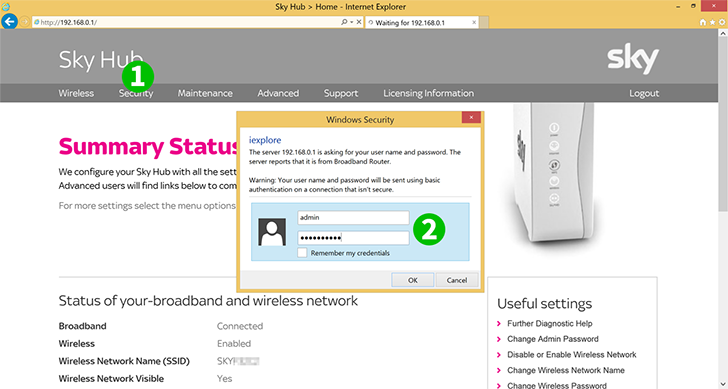
1 In a Web Browser go to Sky Hub’s web interface (default address 192.168.0.1) and click on “Security” tab
2 You will be prompted for router administrator credentials (default username: admin, password: sky)
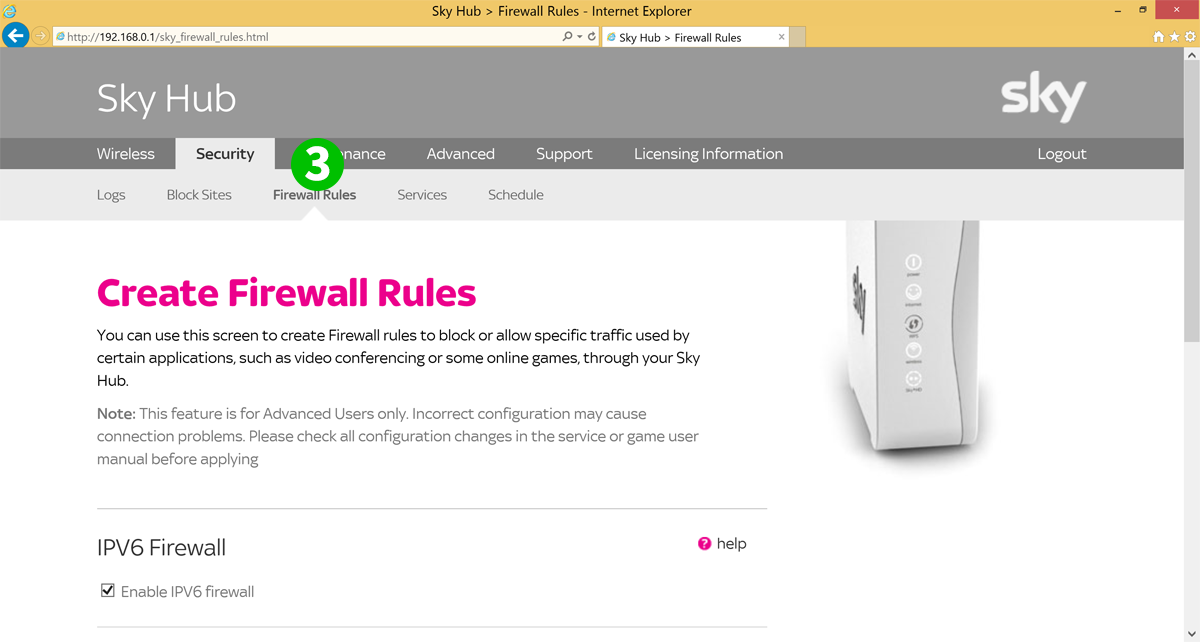
3 Click on “Firewall Rules” sub-tab
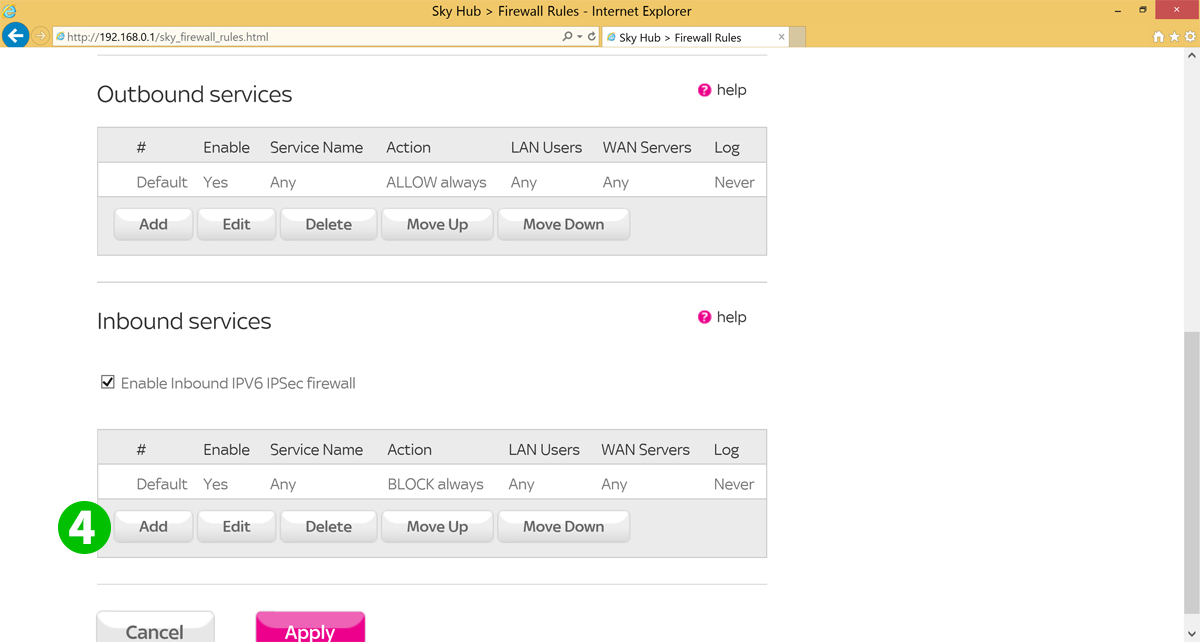
4 Scroll down to “Inbound services” and click on “Add”
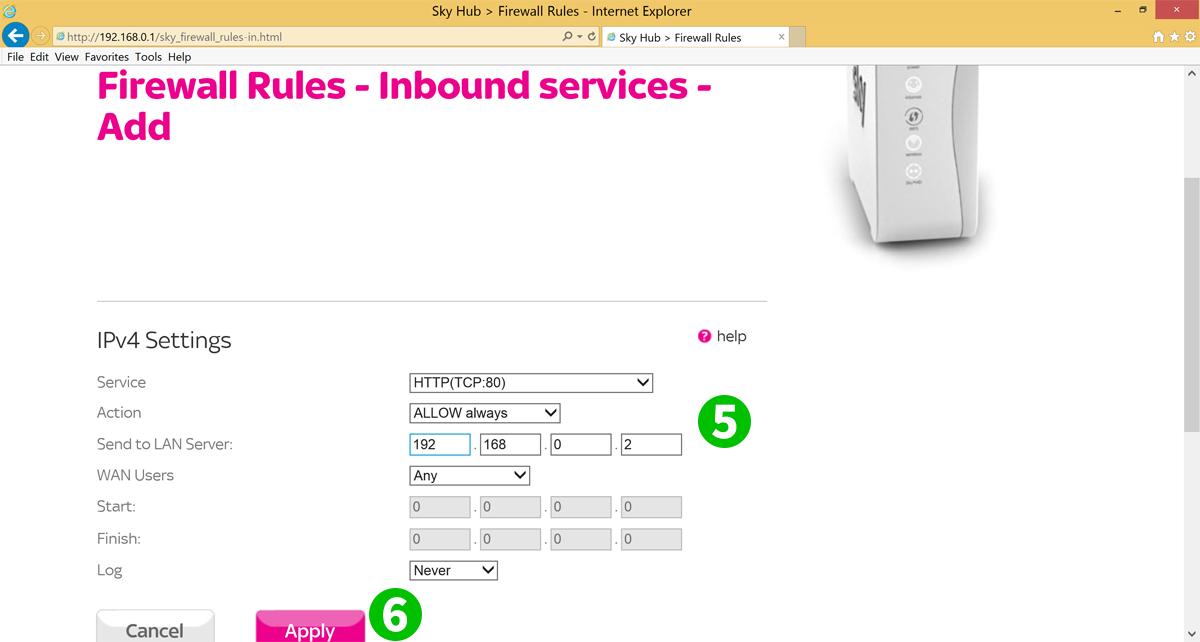
5 Enter forwarding details:
Service – pick HTTP(TCP:80) from the list
Action – ALLOW always
Send to LAN Server – IP of the computer cFos Personal Net is running on
WAN Users – Any
6 Click on “Apply”
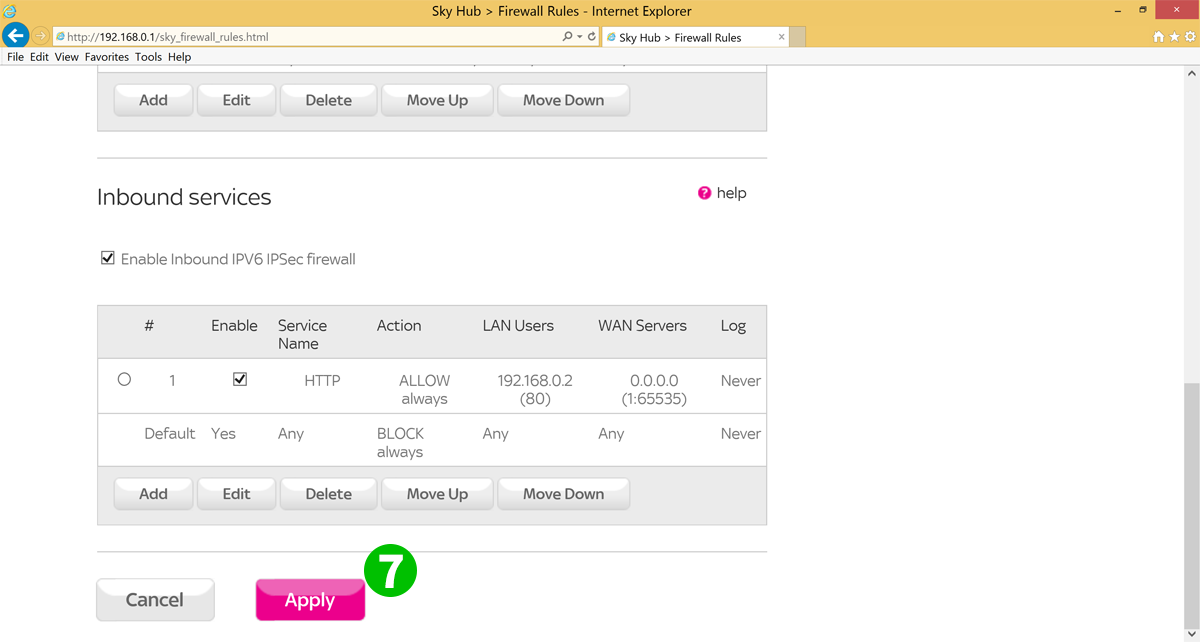
7 New entry should appear on the top of the list, above “Default – BLOCK” rule. Click on “Apply”
Port forwarding is now configured for your computer!
Source:
https://www.cfos.de/en/cfos-personal-net/port-forwarding/sky-hub-sr101.htm
Comments
Post a Comment